
Have you ever wondered how to achieve a truly seamless and anonymous browsing experience? The secret often lies in the “Tech Stack” you use. While an antidetect browser is powerful on its own, it needs a reliable fuel source—high-quality residential proxies.
Enter 922 S5 Proxy and MostLogin. These two industry leaders, when paired together, offer one of the most reliable solutions for managing multiple digital identities safely. However, setting them up correctly is key to avoiding connection drops and leaks.
What is 922 S5 Proxy?
922 S5 Proxy is a leading residential proxy service provider known for its extensive IP resource pool. Unlike traditional datacenter proxies, 922 S5 offers genuine residential IPs, which are IP addresses assigned by Internet Service Providers (ISPs) to real devices in homes.
Key features include:
- Massive IP Pool: Access to millions of IPs from over 190 countries and regions.
- Granular Targeting: Users can filter proxies by country, city, and even ZIP code to match specific location requirements.
- SOCKS5 Protocol: As the name suggests, it specializes in the SOCKS5 protocol, which offers better performance and security for handling various types of traffic compared to standard HTTP proxies.
- Flexible Billing: It often operates on a model where users purchase valid IPs or traffic that doesn’t expire until used, offering great flexibility.
What is MostLogin?
MostLogin is an advanced antidetect browser designed to protect user privacy by managing browser fingerprints. Every time you surf the web, your browser leaks information (like screen resolution, font lists, and hardware details) that creates a unique “fingerprint.” MostLogin isolates these fingerprints, allowing you to browse without being tracked across different sessions.
Key features include:
- Fingerprint Isolation: Creates unique, independent browser environments (profiles) that do not leak data to each other.
- Profile Management: Easily manage hundreds of unique browser profiles from a single interface.
- Team Collaboration: Allows secure sharing of profiles and environments among team members.
- Automation Support: Compatible with various automation frameworks for advanced users.
Step-by-Step Guide: Configuring 922 S5 Proxy into MostLogin
Integrating these two tools is straightforward. The most stable method is using Port Forwarding. This involves setting up the 922 S5 client to broadcast an IP to a specific port on your computer, which MostLogin then listens to.
Step 1: Configure the 922 S5 Proxy Client
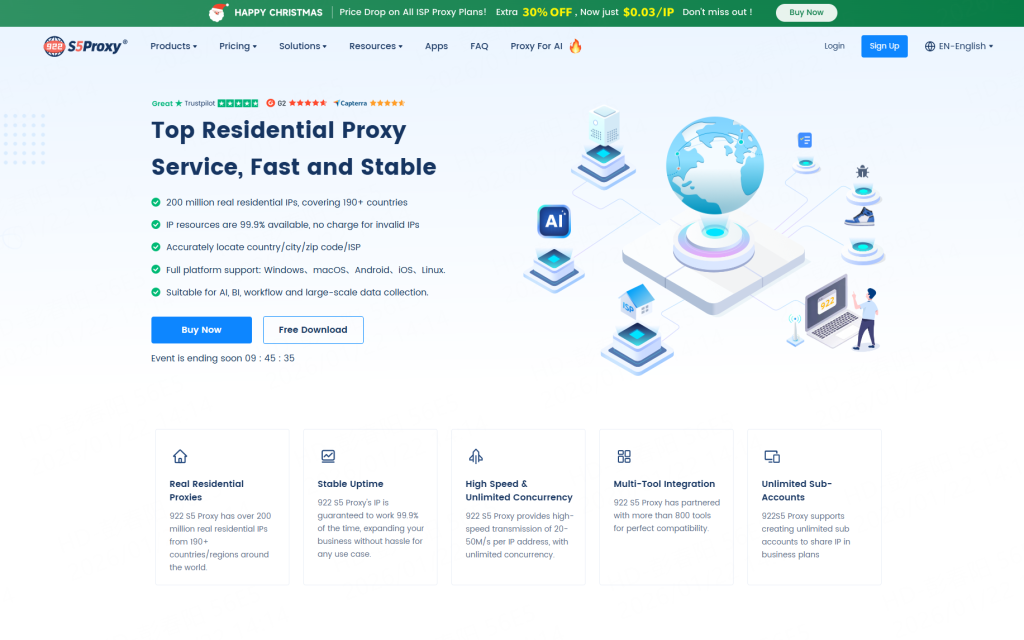
1.Sign up for 922,then downloading the client[Click Here]
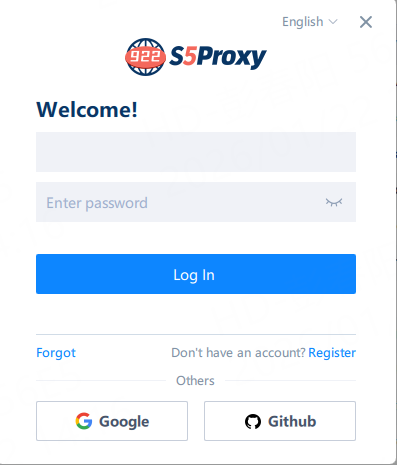
2.Open the 922proxy download and log in
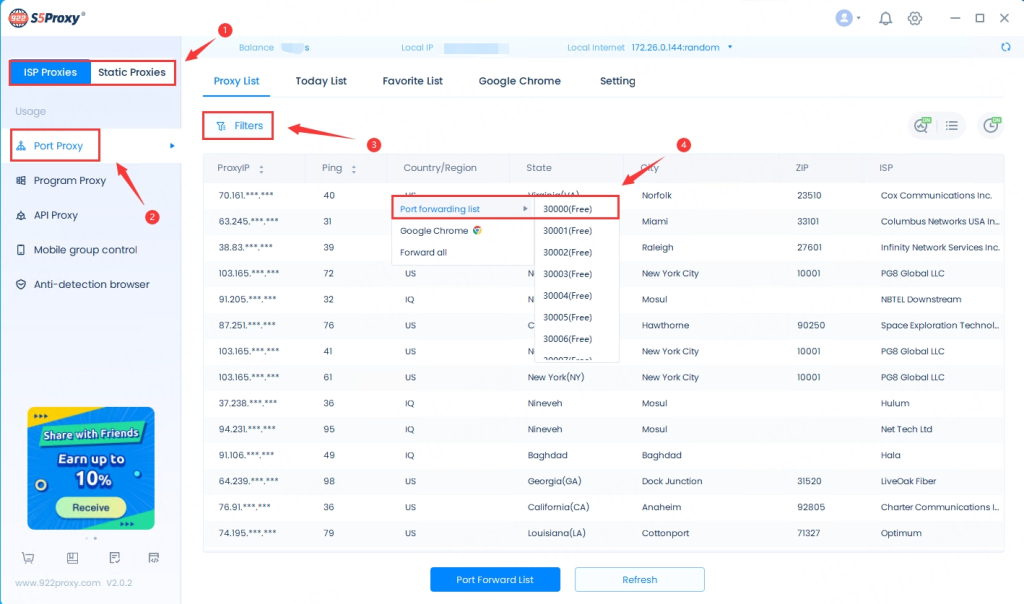
3. Select the “Package Type” purchased, filter and extract the IP address to the “Port”;
If you purchased a traffic package, please refer to the “Account and Password Authentication Extraction Tutorial“.
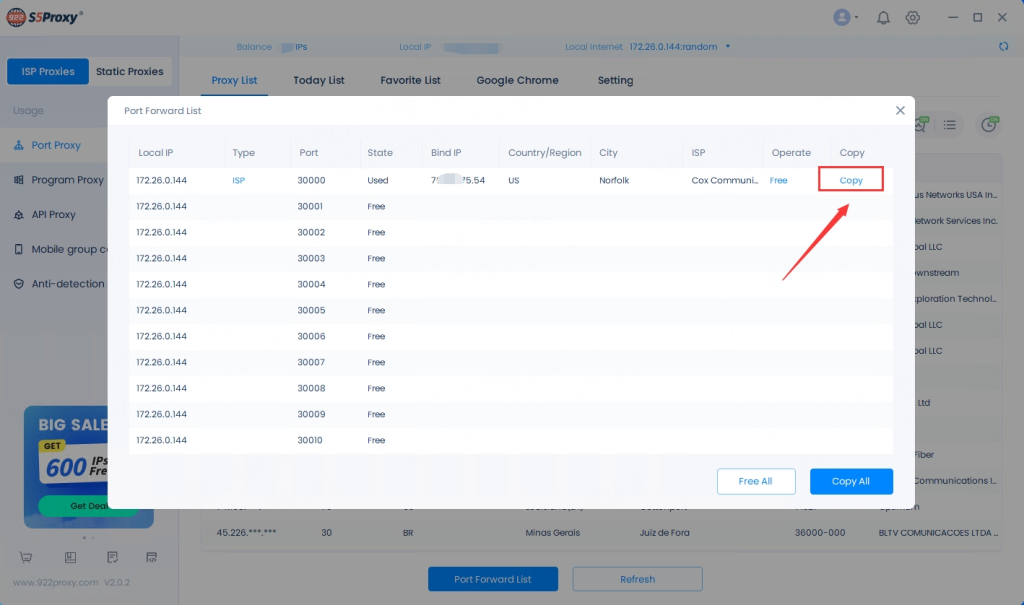
4. Select “Port Forwarding List” and click “Copy”;
Step 2: Set Up the MostLogin Profile
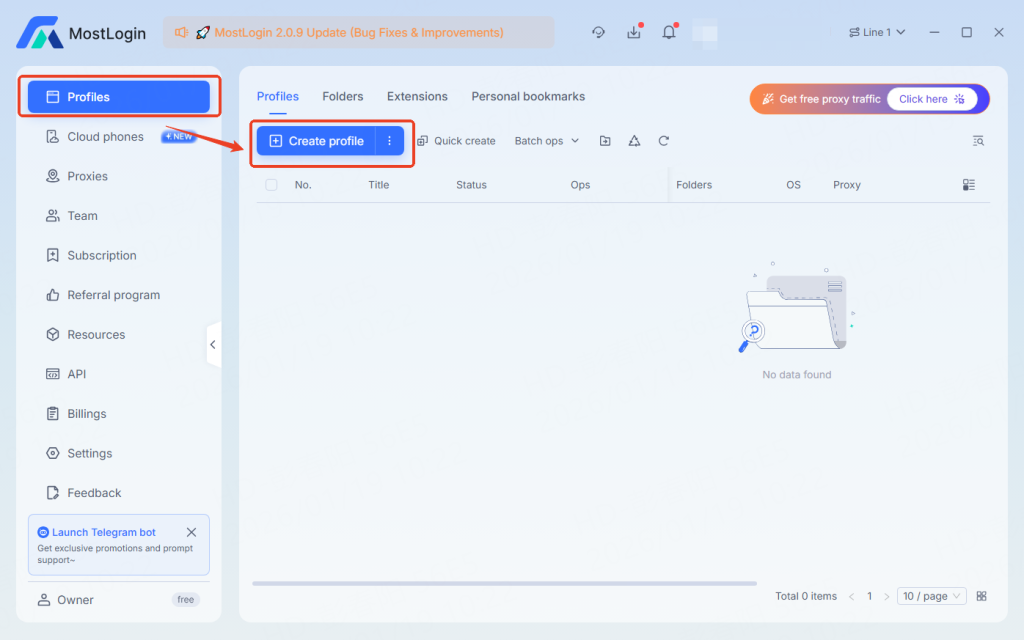
Create a New Profile: Open MostLogin and click on the “Create Profile” button.
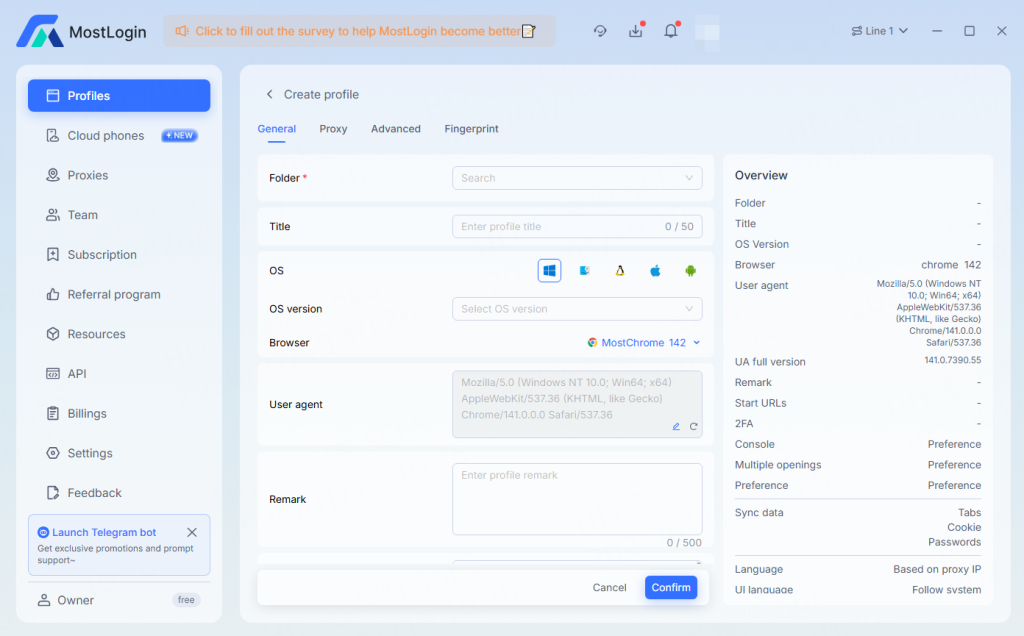
Define Profile Settings: Enter a name for your profile and choose your desired browser (Chrome or Firefox) and Operating System settings.
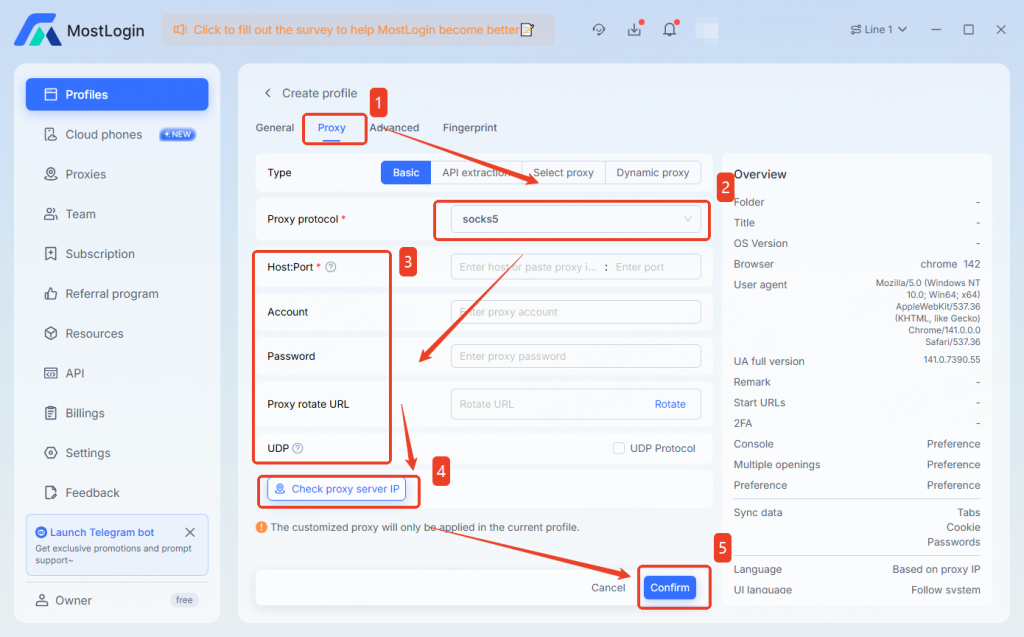
Configure Proxy:
- Scroll to the Proxy settings section.
- Proxy Type: Select SOCKS5 (this is crucial as 922 S5 uses this protocol).
- IP/Host: Enter the Local IP you got from the 922 client (e.g., 127.0.0.1).
- Port: Enter the Port number you selected (e.g., 30000).
- Note: You do not need to enter a Login User or Password when using local port forwarding.
- Verify Connection: Click the “Check Proxy” button.
MostLogin will test the connection. If successful, it will display the location and IP details corresponding to the 922 S5 proxy.
- Finish: Click “OK” or “Start” to launch the browser.
Benefits of Integrating 922 S5 with MostLogin
Combining 922 S5 Proxy with MostLogin offers a synergistic effect that goes beyond using either tool alone:
Enhanced Anonymity: 922 S5 masks your true location with a residential IP, while MostLogin masks your device’s hardware fingerprint. This double-layer protection makes detection nearly impossible.
High Stability: Using the local port forwarding method ensures a direct and stable connection between the proxy software and the browser, reducing connection drops.
Geographic Flexibility: You can create MostLogin profiles that appear to be real users from any city in the world by simply switching the IP in 922 S5.
Simplified Management: Once the port is configured, you can often switch IPs inside the 922 client without changing settings in MostLogin, provided you keep the port number the same.
Conclusion
Configuring 922 S5 Proxy into MostLogin is a powerful step toward securing your online activities. Whether you are focused on privacy protection, managing multiple digital identities, or ensuring secure browsing, this stack provides the reliability and technical sophistication needed in today’s web environment.
By following the steps above, you can establish a secure, isolated, and highly effective browsing setup in minutes.
FAQ
Q: Do I need to keep the 922 S5 client open while using MostLogin?
A: Yes. Since you are using local port forwarding, the 922 S5 application acts as the bridge. If you close it, the internet connection in your MostLogin profile will stop working.
Q: Why should I use SOCKS5 instead of HTTP?
A: SOCKS5 is a lower-level protocol that can handle any type of traffic (TCP/UDP) and does not rewrite data headers. This makes it faster and more anonymous, which is ideal for the 922 S5 and MostLogin integration.
Q: Can I run multiple MostLogin profiles with different IPs?
A: Absolutely. In the 922 S5 client, forward different IPs to different ports (e.g., IP A to port 30000, IP B to port 30001). Then, assign the corresponding ports to different profiles in MostLogin.
Q: The proxy connection failed during the check. What should I do?
A: First, ensure the IP in the 922 S5 client is still active (green light). Residential IPs can expire. If it has expired, select a new IP and forward it to the same port number. Second, ensure your firewall is not blocking the connection.